

Installation
Getting Blocklist for Forms running takes a couple of minutes. You’ll download the plugin, install it in WordPress, activate it, and then choose which forms to protect.
Requirements
Section titled “Requirements”Before you start, make sure your site meets the requirements:
- WordPress 6.3 or later (tested up to WordPress 7.0)
- One or more supported form plugins — see Supported form plugins
Step 1 — Download Blocklist for Forms
Section titled “Step 1 — Download Blocklist for Forms”After purchasing Blocklist for Forms from codecariad.com, you download the plugin from your account area.
-
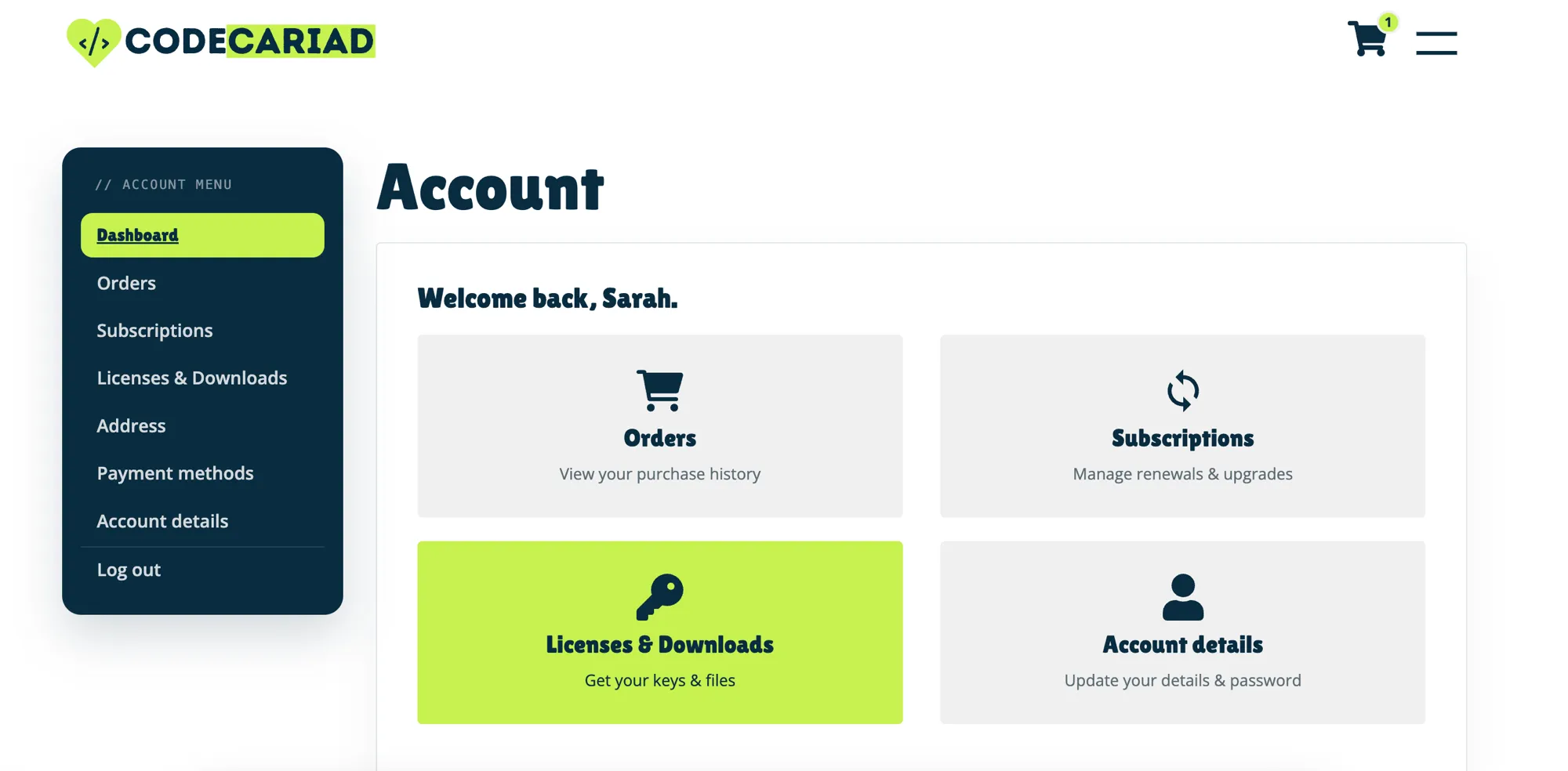
Log in and open your account, then select Licenses & Downloads from the account menu (or the dashboard tile).
-
Under Downloads, select the Blocklist for Forms button to save the
.zipfile to your computer.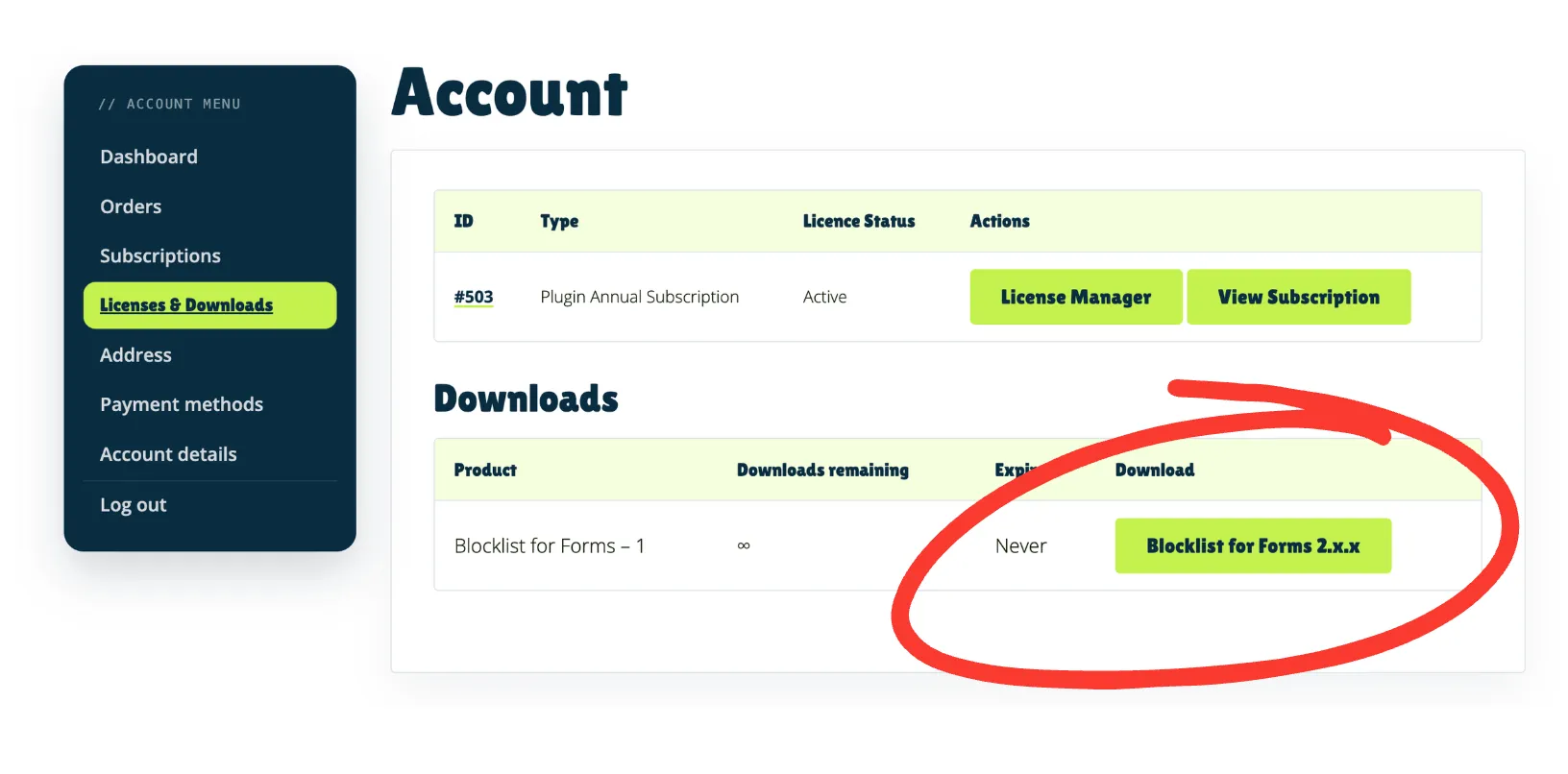
You’ll upload this .zip to WordPress in the next step, and enter your license
key once the plugin is active.
Step 2 — Install & activate the plugin
Section titled “Step 2 — Install & activate the plugin”You can install Blocklist for Forms through the WordPress admin, or by uploading the folder manually.
Option A — Upload through WordPress (recommended)
Section titled “Option A — Upload through WordPress (recommended)”-
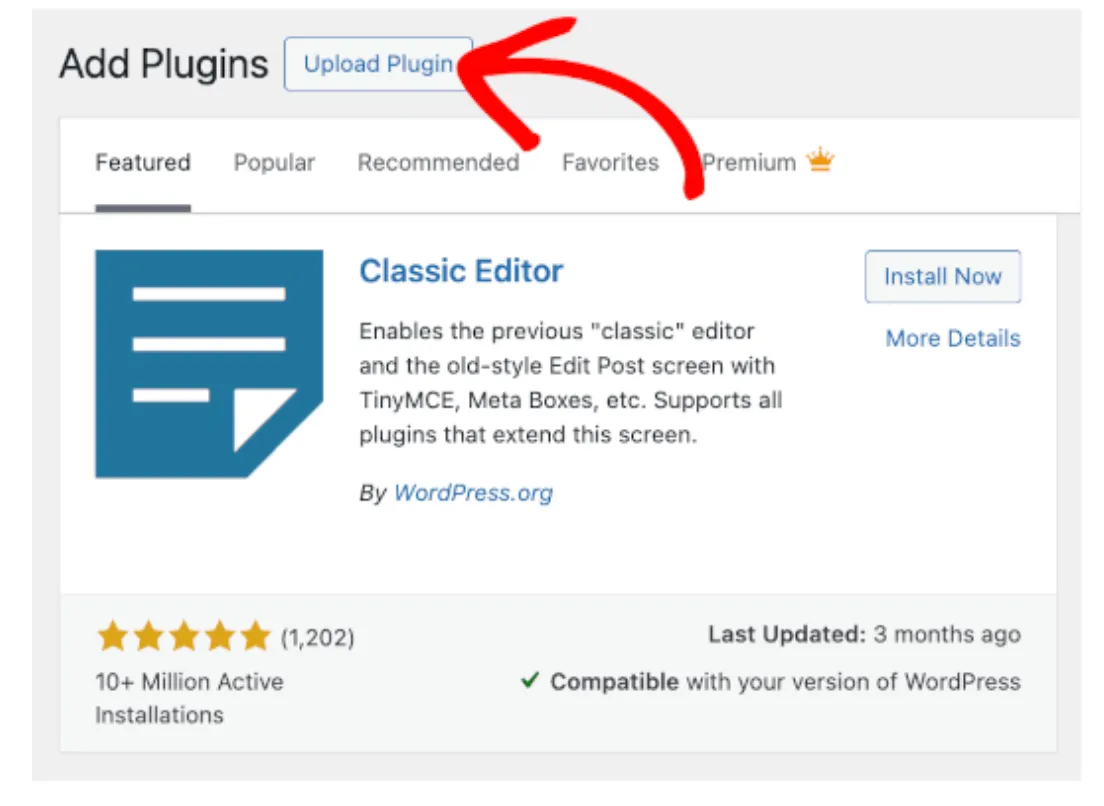
In your WordPress admin, go to Plugins → Add New, then select Upload Plugin at the top of the screen.
-
Choose the Blocklist for Forms
.zipfile and select Install Now. -
When the upload finishes, select Activate Plugin.
Option B — Upload manually via FTP/SFTP
Section titled “Option B — Upload manually via FTP/SFTP”- Unzip the Blocklist for Forms download.
- Upload the plugin folder to
wp-content/plugins/on your server. - In WordPress, go to Plugins, find Blocklist for Forms, and select Activate.
Step 3 — Enable protection for your forms
Section titled “Step 3 — Enable protection for your forms”- Go to Settings → Blocklist for Forms.
- Enable protection for each form plugin you use.
Step 4 — Add your license key
Section titled “Step 4 — Add your license key”Enter your license key on the License tab of the Settings → Blocklist for Forms page and select Activate. This unlocks automatic updates and support. See Licensing & activation for how to generate your key and activate it.
Step 5 — Add words to block
Section titled “Step 5 — Add words to block”Add the words you want to block under Settings → Discussion → Comment Disallowed Words, or use Blocklist for Forms’ own custom list. See Blocking words for the details.