

Uninstalling cleanly
When you remove Blocklist for Forms you can decide what happens to its data. By default your settings and license are kept, so you can reinstall later without setting everything up again. If you’d rather leave nothing behind, you can tell the plugin to delete all of its data when it’s removed.
What happens by default
Section titled “What happens by default”Deleting Blocklist for Forms from the Plugins screen leaves your settings and license key in the database. This is deliberate: if you reinstall the plugin — on the same site or after troubleshooting — your protection picks up exactly where it left off, with no reconfiguration needed.
Removing all data on uninstall
Section titled “Removing all data on uninstall”If you want a completely clean removal — for example when retiring a site or moving to a different solution — you can have the plugin erase everything it stored.
- Go to Settings → Blocklist for Forms and open the Support tab.
- Scroll to the Danger Zone.
- Turn on Delete all Blocklist for Forms settings and license when the plugin is deleted.
- Select Save.
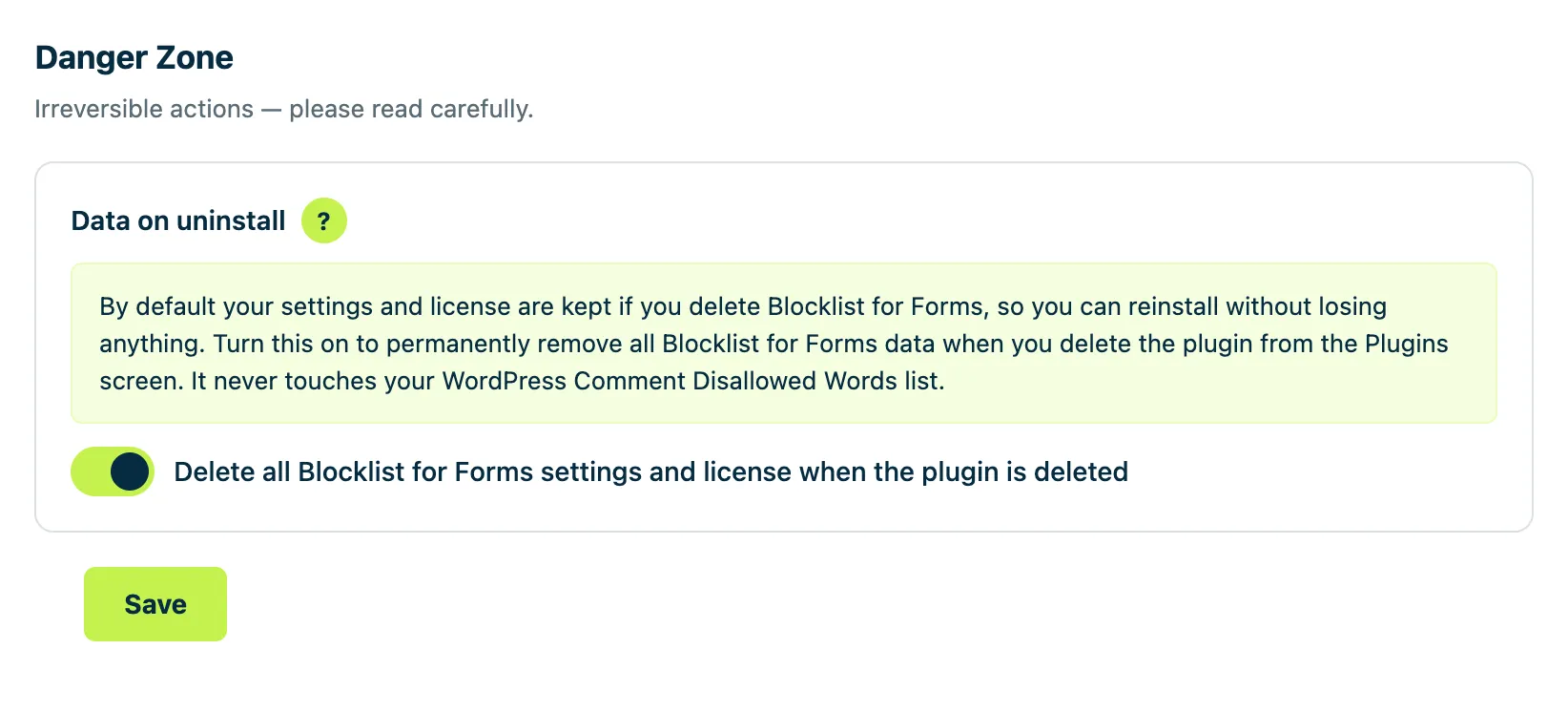
With this enabled, all Blocklist for Forms settings and your license details are permanently removed the moment you delete the plugin from the Plugins screen. Your Comment Disallowed Words list is still left untouched.
Removing the plugin
Section titled “Removing the plugin”The toggle above only decides what data is deleted. To actually remove the plugin:
- Go to Plugins in your WordPress admin.
- Find Blocklist for Forms and select Deactivate.
- Once deactivated, select Delete.
If you left the uninstall option off, your settings and license remain in the database ready for a future reinstall. If you turned it on, deleting the plugin also clears that data for good.